
Helpful Links
Installing Burp Suite
- Go to the following link and download the installation script: Download and Install
- Once downloaded, navigate to the downloaded directory and run the following commands to install (run as root or with sudo):
chmod +x burpsuite_community_linux<version>.sh./burpsuite_community_linux<version>.shStarting Burp Suite
In the terminal simply execute the following command
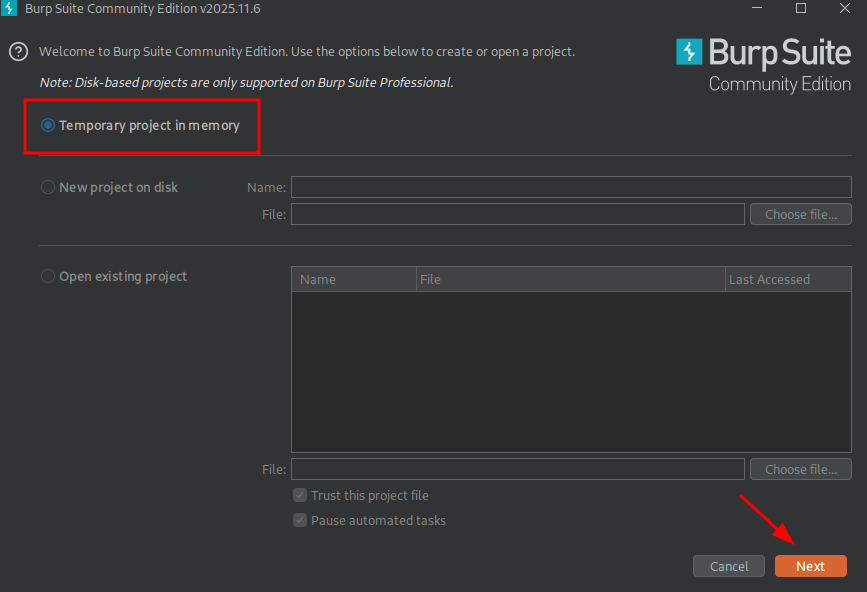
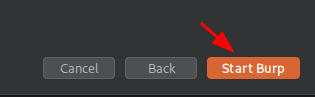
burpsuiteIf running the Community (free) version, you will only have the option to start a temporary project so just simply follow the prompts to continue.
Installing Proxy Certificate
After you have started the application, Burp automatically spins up a proxy server running on port 8080.
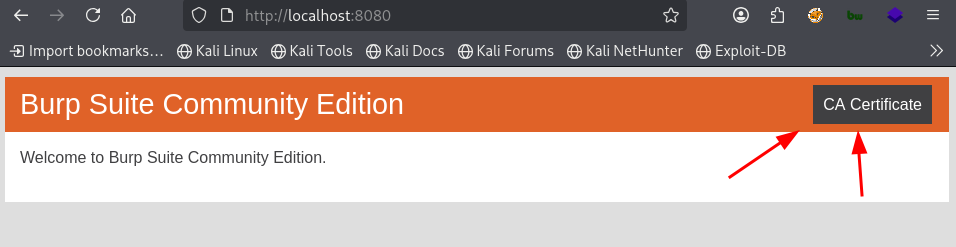
If we navigate to this port within a web browser, we are presented with a simple web page where we can download the
certificate required for intercepting requests. Navigate to the following link:
http://localhost:8080After navigating to the page, just simply click the button CA Certificate to download the Burp Suite certificate.
Installing the Certificate
After you have downloaded the certificate, you now need to import it into your browser of choice.
Firefox (Recommended)
Simply navigate to Settings > Privacy & Security > Certificates then select the button View Certificates.
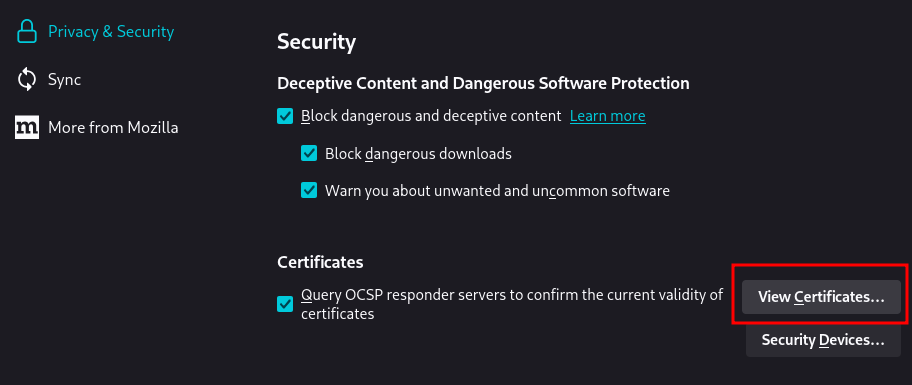
Now select the button Import....
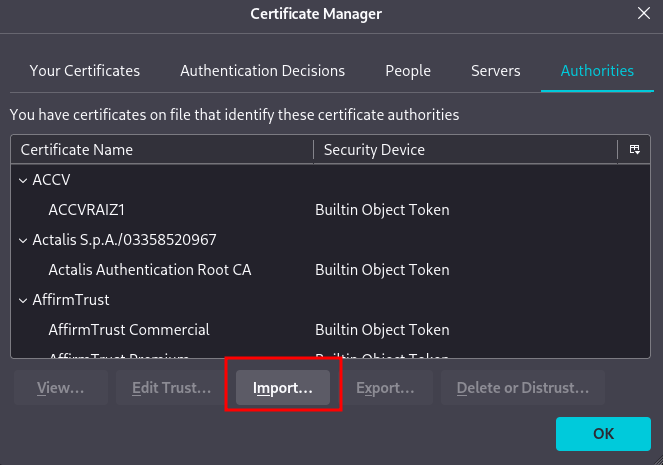
Now select the recently downloaded certificate.

When prompted you can select all of the check boxes and select OK.
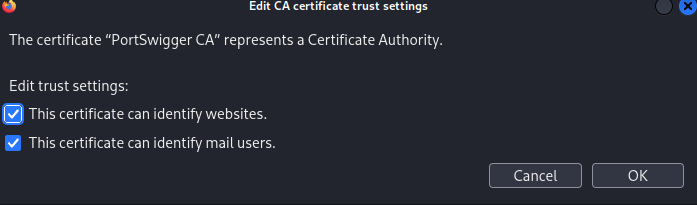
Now that this certificate is imported, you can successfully start to intercept HTTP traffic.
Chrome
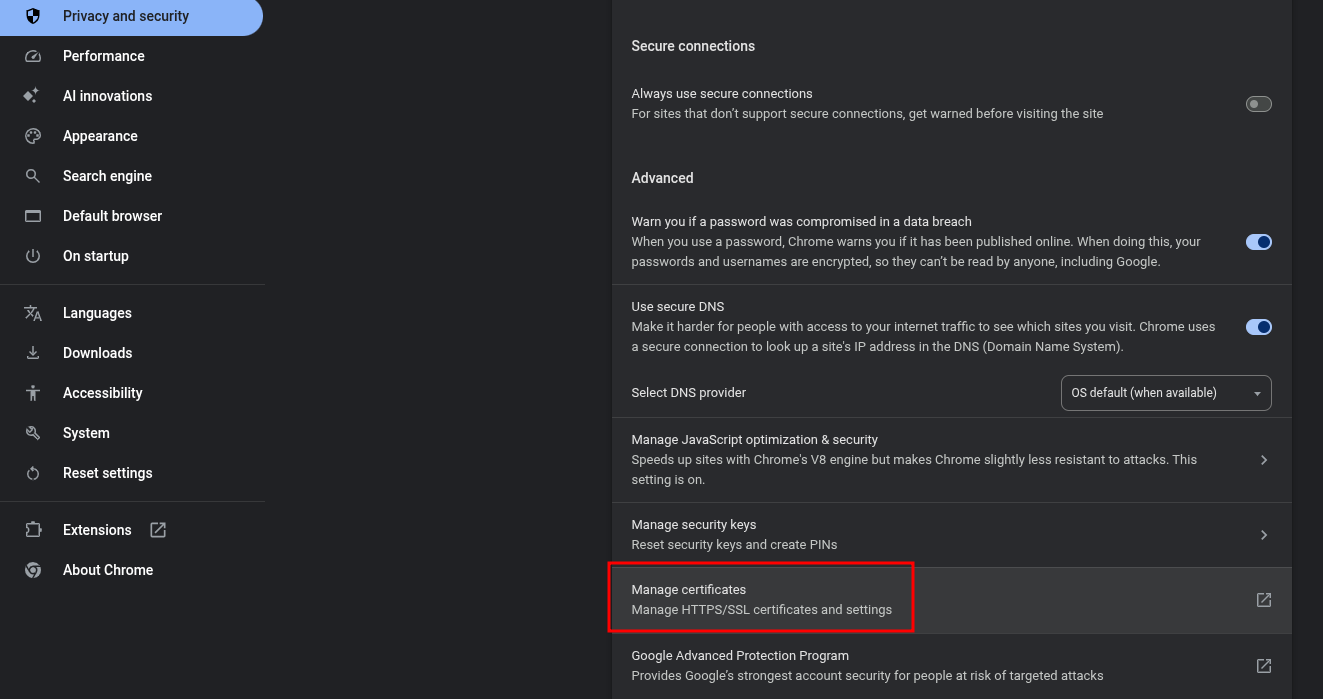
Simply navigate to Settings > Privacy and Security > Security then select the button Manage certificates.
Now select Installed by you.
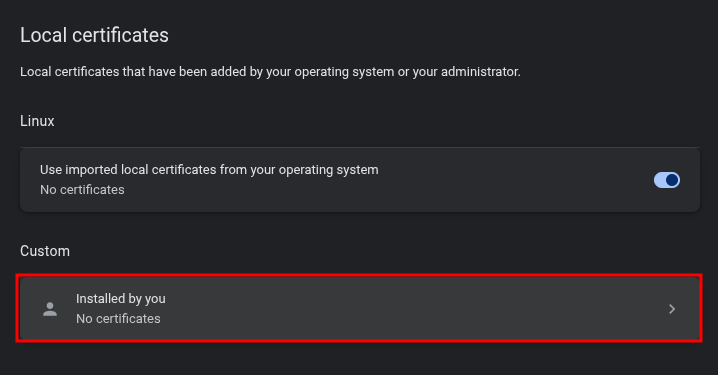
Next to Trusted Certificates select Import.
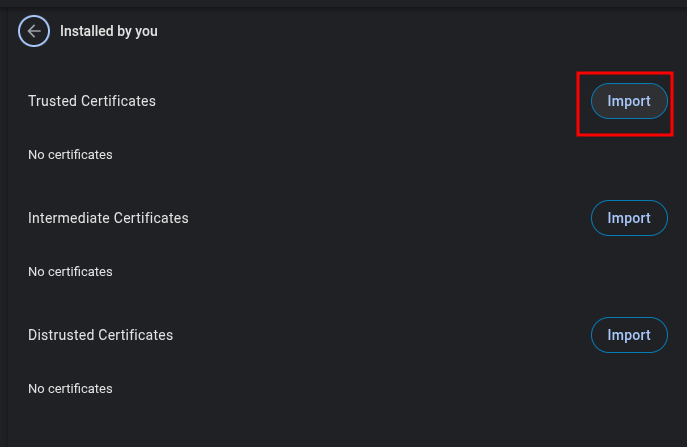
Now just select the certificate you downloaded earlier and select it to be imported.
